
System Master Template Panel
In editor mode, enable the master template panel with ui.masterTemplatePanel and provide a system master template list through masterTemplates.listSystem (supported since 2.16.0). Users can view cover images, preview templates, and apply a selected template to the current slide.
The host can also apply templates programmatically through mode.setMasterTemplate() in both editor and presentation modes.
Demos
- Master Template Panel Data Configuration: Open in editor mode to explore list configuration, then use the master template panel to preview and apply templates.
- Editor UI Configuration: Show or hide the master template panel through the
uiconfiguration.
Integration Steps
- Prepare master template JSON content. Create, edit, and export templates from the master template management page, or use the SDK sample data.
- Set
ui.masterTemplatePanel: truewhen creating the editor. - Return a template array from
masterTemplates.listSystem. Each item containsid,name, andcontent. - Users can open the master template panel and preview or apply templates from the system template list.
Integration Example 1: Local Data
Deploy the two sample JSON files to the host site's /templates/ directory, then read their contents in the callback:
import {
  createEditor,
  type MasterTemplateCallbacks,
  type MasterTemplateItem,
} from '@dajiaoai/algeo-sdk';

const sources = [
  {
    id: 'black-white-six-styles',
    name: 'Monochrome Layout',
    url: '/templates/黑白-风格母版-六主题.json',
  },
  {
    id: 'color-ppt-sixteen-styles',
    name: 'Color PPT Dynamic Presentation',
    url: '/templates/彩色PPT-动态讲解-十六主题.json',
  },
];

const masterTemplates: MasterTemplateCallbacks = {
  async listSystem(): Promise<MasterTemplateItem[]> {
    return Promise.all(
      sources.map(async ({ id, name, url }) => {
        const response = await fetch(url);
        if (!response.ok) {
          throw new Error(`Failed to load ${name} (HTTP ${response.status})`);
        }
        return { id, name, content: await response.text() };
      }),
    );
  },
};

const editor = await createEditor(
  document.getElementById('algeo-editor')!,
  {
    auth: { appId: 'your-app-id' },
    ui: { masterTemplatePanel: true },
    masterTemplates,
  },
);

// Hide or show the panel at runtime.
await editor.mode.setUiConfig({ masterTemplatePanel: false });
await editor.mode.setUiConfig({ masterTemplatePanel: true });
Integration Example 2: A Host API
listSystem can also query the host's own API. This example assumes the endpoint returns a JSON array matching MasterTemplateItem[]:
import type {
  MasterTemplateCallbacks,
  MasterTemplateItem,
} from '@dajiaoai/algeo-sdk';

const masterTemplates: MasterTemplateCallbacks = {
  async listSystem(): Promise<MasterTemplateItem[]> {
    const response = await fetch('/api/system-master-templates', {
      credentials: 'include',
    });
    if (!response.ok) throw new Error('Failed to fetch system master templates');
    return response.json();
  },
};
If the API returns a structure such as { items: [...] }, extract the array and map the business fields to the SDK field names in the callback. Handle authentication for the host API in that request.
Setting a Master Template through the API
After creating an instance, the host can call mode.setMasterTemplate(template) to apply a master template. This method can be used independently of the master template panel.
Parameter and Return Value
| Item | Type | Description |
|---|---|---|
template | string | A complete master template JSON string, read from a template file or taken from a list item's content. |
| Return value | Promise<{ success: true }> | Resolves when the template has been applied successfully; rejects if application fails. |
Editor Mode
editor.mode.setMasterTemplate(template) sets the current project's master template and applies it to all existing slides. Slides added later inherit the project master template.
import { createEditor } from '@dajiaoai/algeo-sdk';

const editor = await createEditor(
  document.getElementById('algeo-editor')!,
  {
    auth: { appId: 'your-app-id' },
    shareId: 'your-share-id',
  },
);

const response = await fetch('/templates/master-template.json');
if (!response.ok) throw new Error('Failed to load the master template');

const templateContent = await response.text();
const result = await editor.mode.setMasterTemplate(templateContent);
console.log('Master template applied:', result.success);

// Read the latest project content, including its master template,
// and pass it to the host's API for saving.
const projectContent = await editor.document.getContent();
The project master template is stored in the project content's templateStyle field. Saving the complete content returned by getContent() allows the master template configuration to be restored when that content is loaded again.
If the host already has a list of MasterTemplateItem records, pass the selected item's content directly to this method.
Presentation Mode
presentation.mode.setMasterTemplate(template) applies the template style to all slides currently loaded in the instance.
import { createPresentation } from '@dajiaoai/algeo-sdk';

const presentation = await createPresentation(
  document.getElementById('algeo-viewer')!,
  {
    auth: { appId: 'your-app-id' },
    shareId: 'your-share-id',
  },
);

const response = await fetch('/templates/master-template.json');
if (!response.ok) throw new Error('Failed to load the master template');

const templateContent = await response.text();
await presentation.mode.setMasterTemplate(templateContent);
In presentation mode, the call updates the appearance of the loaded slides without writing to the project's templateStyle. To use the same template after loading different content, call the method again after loading has completed.
Display and Application Behavior
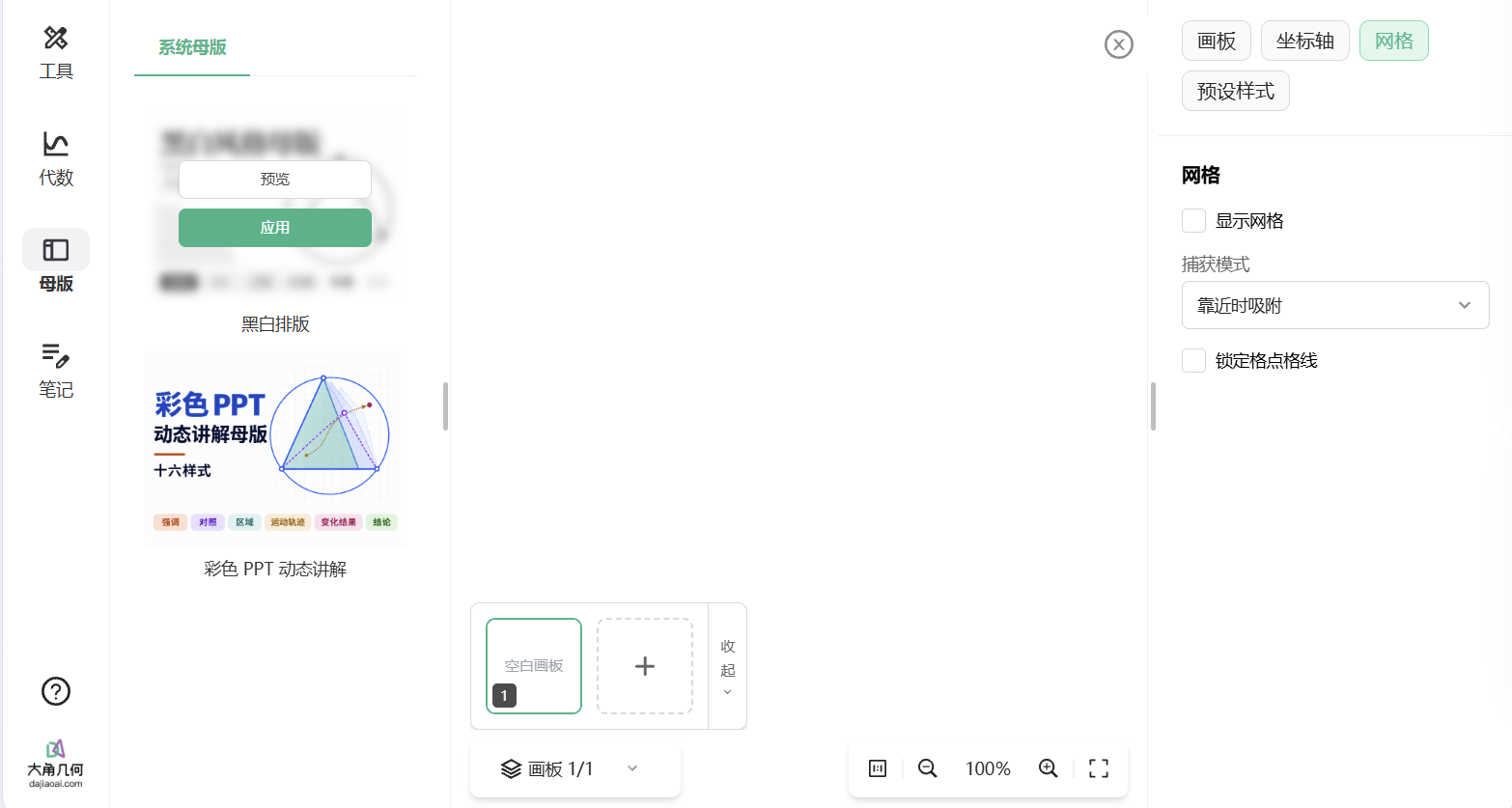
Click Preview in the list to view the cover image and template content. Click Apply in the list or preview dialog to apply the template to the current slide.
Application scope:
| Operation | Scope |
|---|---|
| Apply in the master template panel | The current slide. |
editor.mode.setMasterTemplate(content) | Sets the project master template, applies it to all existing slides, and makes newly added slides inherit it. |
presentation.mode.setMasterTemplate(content) | All slides currently loaded in the instance. |
Errors and Request Lifecycle
- The content passed to
setMasterTemplate()must follow the master template format. Handle the rejected Promise withtry/catchif the content is invalid or application fails. - The callback can throw an
Error; itsmessageis included in the list loading error shown to the user. - The canvas waits up to 60 seconds for the template query result. The host can set its own request timeout inside
listSystem. - After the instance is destroyed, the SDK stops returning results for pending queries. The host can manage its own
AbortControllerif it also needs to stop its network requests.
FAQ
The system template tab is missing after enabling the panel
Check that masterTemplates.listSystem is provided when creating the editor. The UI option controls the panel entry, and the callback configuration determines whether the system template tab is displayed.
Template names are shown, but cover images are missing
Check whether JSON.parse(item.content).previewPngUrl is set and whether that address can load an image directly.
The template list fails to load
Check that the callback returns an array, IDs are non-empty and unique, and content is a string. When using a host API, also check that the request succeeds and the callback maps the response fields as needed.