
Consistent Image Export Across Workflows
A geometry project may start with AI generation, continue through manual editing, and eventually be exported through the SDK, MCP, or Dino-GSP APIs. Save the composition parameters in the project so that each step can reuse the same bounds, viewing direction, and image dimensions.
Use a finite canvas for planar geometry (2D), and a fixed view for solid geometry (3D). Configure this whether the project is generated through MCP or edited manually. Projects generated through the Dino-GSP AI figure generation API automatically include an AI-recommended finite canvas or fixed view. Review the subject, annotations, and margins before reusing it.
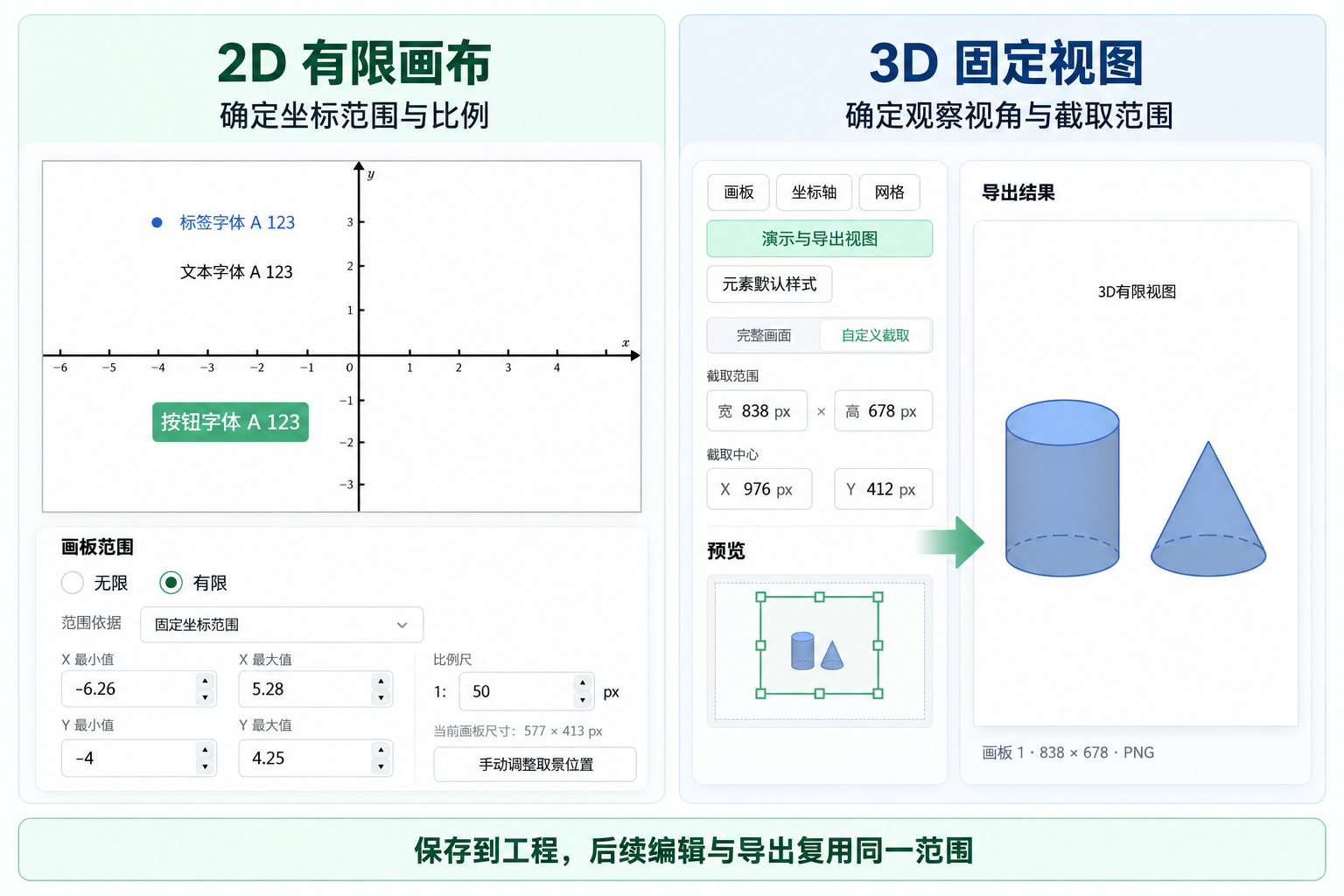
Set the bounds during generation and editing
| Project source | Recommended action |
|---|---|
| Manual editing, including an embedded SDK canvas | After adjusting the composition, set a finite canvas for 2D or save and enable a fixed view for 3D. Then save the project so later exports can reuse the composition. |
| Dino-GSP AI figure generation API | Keep the AI-recommended finite canvas or fixed view, review and adjust it as needed, and save it with the complete project. |
| Generation with a custom agent | After drawing, ask the AI to recommend crop parameters based on the geometry, text, and annotations. For 2D, provide bounds and a layout scale, then set a finite canvas. For 3D, provide viewing angles, zoom, full viewport dimensions, and a crop rectangle, then configure and enable a fixed view. Keep the subject and annotations fully visible, geometric relationships clear, and margins balanced. Check and adjust an export preview, then report the final parameters. |
Preview the project before handoff. Check that the subject and annotations are fully visible, margins are suitable, and the 3D view clearly shows geometric relationships.
Reuse these parameters during later editing. If the composition needs to change, update the finite canvas or fixed view and save the project for subsequent steps.
2D and 3D fields have different meanings
| Item | Planar geometry (2D): finite canvas | Solid geometry (3D): fixed view |
|---|---|---|
| Project fields | slides[].viewBounds | slides[].viewCamera3d, with viewCamera3dEnabled: true |
| What defines the view | World-coordinate bounds: minX, maxX, minY, maxY | Camera center, viewing angles, projection, zoom, full viewport dimensions, and an optional crop rectangle |
scale | Logical pixels per world-coordinate unit; changing it with unchanged bounds changes the logical output dimensions | Camera zoom; increasing it zooms in and reduces the visible world range, changing composition. The 2D size formula does not apply. |
| Rectangle coordinates | Export left/right/bottom/top are world coordinates, with Y pointing up and bottom < top | crop.left/top/right/bottom are logical pixel coordinates within the full viewport, with the origin at the top left, Y pointing down, and top < bottom |
| Image dimensions | Calculated from world-coordinate bounds, scale, and pixelRatio | Calculated from full logical viewport width/height or the enabled crop rectangle, and pixelRatio |
pixelRatio controls the physical pixel dimensions of the export. With the same composition, use the same multiplier to keep pixel dimensions consistent.
To increase resolution alone, adjust pixelRatio and keep the view parameters unchanged.
Planar geometry: set a finite canvas
A finite canvas defines the output bounds in world coordinates and the layout scale. There are three ways to configure it.
Call REPL through the SDK
In SDK edit mode, use editor.repl() to set bounds for the current 2D canvas:
await editor.repl('view_bounds (-6, 6, -4, 4, 50)');The arguments are minX, maxX, minY, maxY, and scale.
view_bounds: query the current settings.view_bounds infinite: restore an infinite canvas.
Ask the AI to make changes through MCP
Give an AI connected through MCP a request such as:
Set a finite canvas for the current 2D canvas. Recommend bounds and a layout scale that best present the subject and annotations. Check an export preview to ensure all content is visible with suitable margins, and report the final parameters.
The AI runs view_bounds through MCP's repl tool to save the bounds to the canvas.
Adjust it in the embedded canvas
In the embedded canvas editor, configure the finite canvas bounds and layout scale. Check the preview, then save the complete project.

Solid geometry: configure and enable a fixed view
A 3D fixed view saves the viewing direction, projection, camera center, viewport dimensions, and crop bounds. The same three configuration methods are available.
Call REPL through the SDK
In SDK edit mode, use editor.repl() to configure and enable a fixed view for the current 3D canvas:
await editor.repl(`view_camera3d {
  offset: (0, 0, 0);
  projection: "orthographic";
  yawDeg: 45;
  pitchDeg: 30;
  scale: 0.1;
  width: 1200;
  height: 800;
  crop: (100, 50, 1100, 750);
}`);
This command sets the parameters and enables the fixed view.
view_camera3d: query only; does not enable the view.view_camera3d off: disable the view while retaining its parameters.view_camera3d on: enable the view again.
Ask the AI to make changes through MCP
Give an AI connected through MCP a request such as:
Configure and enable a fixed view for the current 3D canvas. Recommend viewing angles, zoom, viewport dimensions, and crop bounds that clearly show the geometric relationships. Check an export preview to ensure the subject and annotations are fully visible with suitable margins, and report the final parameters.
The AI runs view_camera3d through MCP's repl tool to save and enable the configuration.
Adjust it in the embedded canvas
In the embedded canvas editor, configure the fixed view's viewing angles, zoom, viewport dimensions, and crop bounds.
Check the preview, then enable the fixed view and save the complete project.
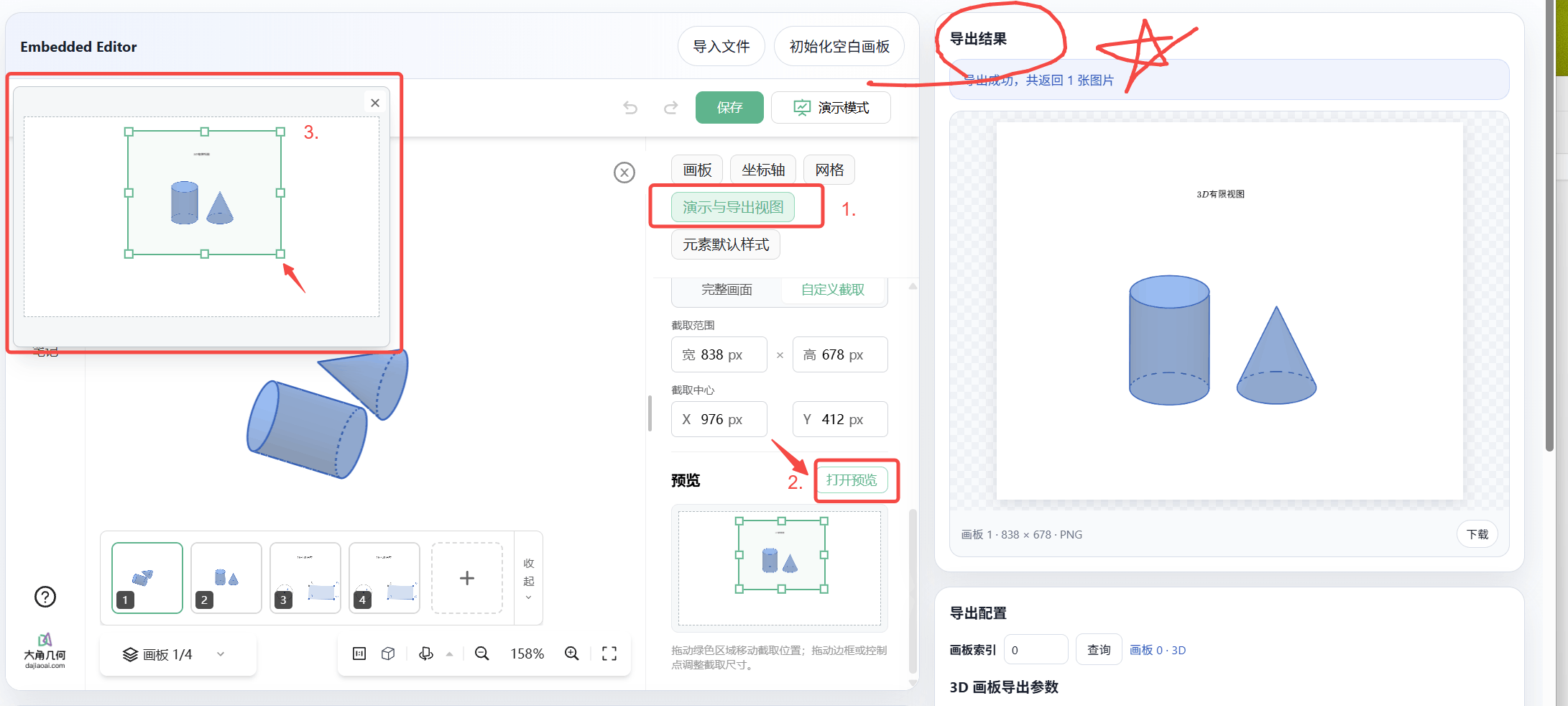
Reuse the configuration downstream
Set a finite canvas or fixed view during initial generation and save the complete project. Later steps can reuse it without repeatedly adjusting the composition.
MCP
Ask the AI to export using the bounds and viewing direction saved in the project. Use export_image for 2D or export_image_3d for 3D, without specifying view parameters again.
See the MCP documentation for setup and usage.
Dino-GSP PNG API
Call POST /api/render/v2 with the complete project as content and the target canvas as slideIndex. Omit view2D / view3D to reuse the saved configuration.
See the PNG export API for request examples and optional parameters.
Embedded SDK canvas
Read the saved configuration and pass it to exportImage with mode: 'view':
- 2D: read it with
getViewBounds()and pass the result asviewBound. - 3D: read it with
getViewCamera3d()and pass the result asviewCamera3d.
See SDK image export for complete examples.
When the composition needs to change, update the finite canvas or fixed view and save the project. Later steps can reuse the new configuration.
Troubleshooting differences
| Symptom | What to check |
|---|---|
| Editor preview differs from backend export | Was the finite canvas / fixed view saved? Is the 3D fixed view enabled? Was the editing camera used by mistake? |
| Image edges or dimensions change after adding annotations | Did the export switch to fitting content, or recalculate the bounds automatically? |
| Incorrect 3D angle, zoom, or crop | Were degrees confused with radians, 2D scale with 3D scale, or world coordinates with viewport pixel coordinates? |
| Matching composition but different pixel dimensions | Check pixelRatio, the 2D layout scale, or the 3D full viewport and crop enable flag. |
| A temporary export is correct but the next step differs | Were only per-export parameters overridden, without saving the new configuration to the complete project? |