
Insert Images from a Material Library
Starting with SDK 2.11.0, integrators can connect their own image library to the embedded editor. Images remain stored, categorized, and authorized by the integrator. When a user browses, searches, or changes pages in the editor, the SDK calls the host-provided resourceLibrary.query(). The editor then displays the returned images and inserts the selected material into the slide.
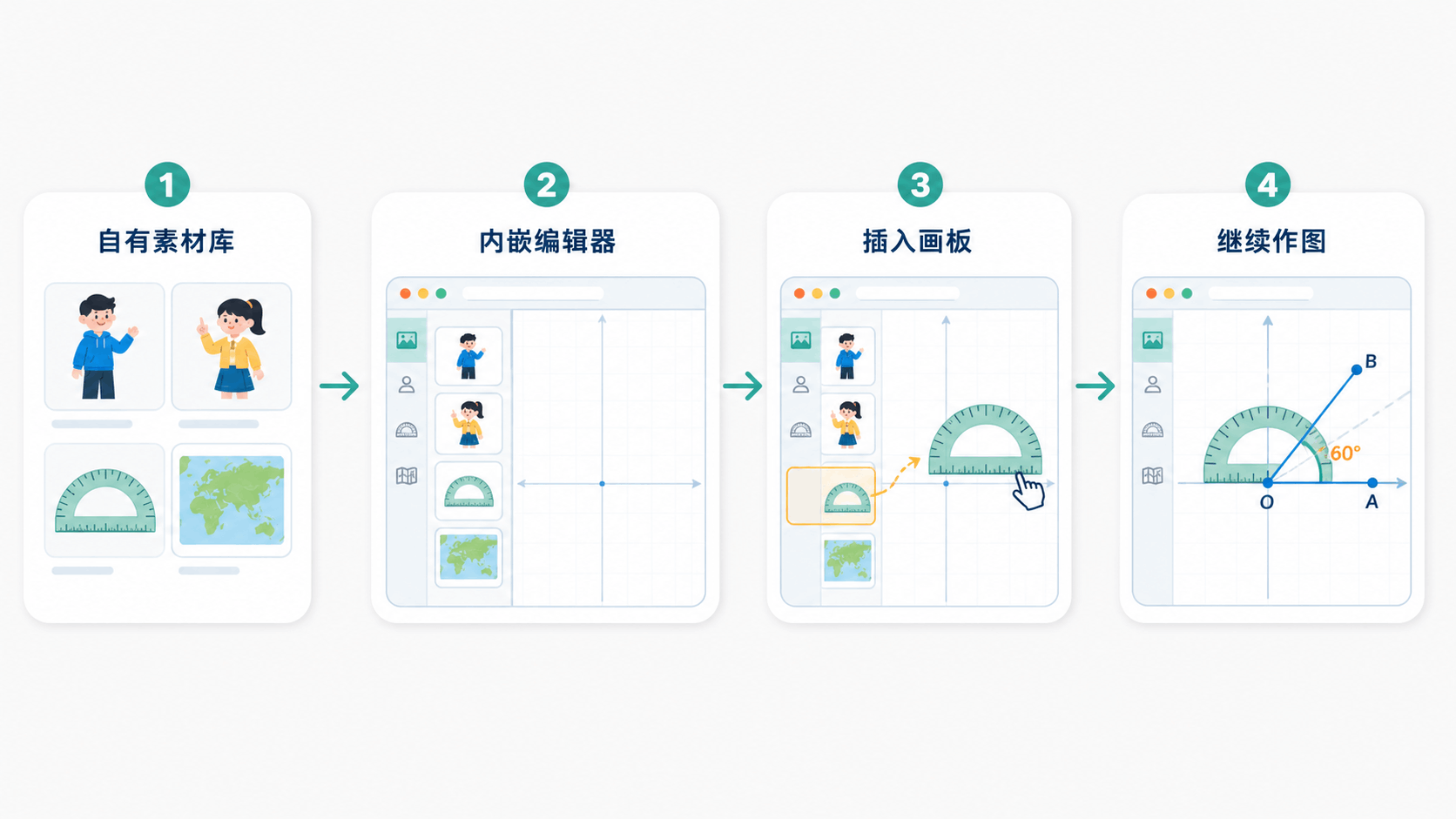
Interactive Demo
Try It Online
The example demonstrates the complete Provider configuration, paginated search, request cancellation, and protocol data structures.
Integration Flow
- The integrator's backend provides an image search endpoint.
- The host page passes
resourceLibrarywhen creating the editor. - When the editor needs image data, it calls
resourceLibrary.query(params, context). - The host queries its own backend and returns the image list and pagination data in the SDK protocol format.
- The user selects an image, and the editor inserts the material at its original image URL into the current slide.
If resourceLibrary is not configured, the embedded editor does not show the image library entry.
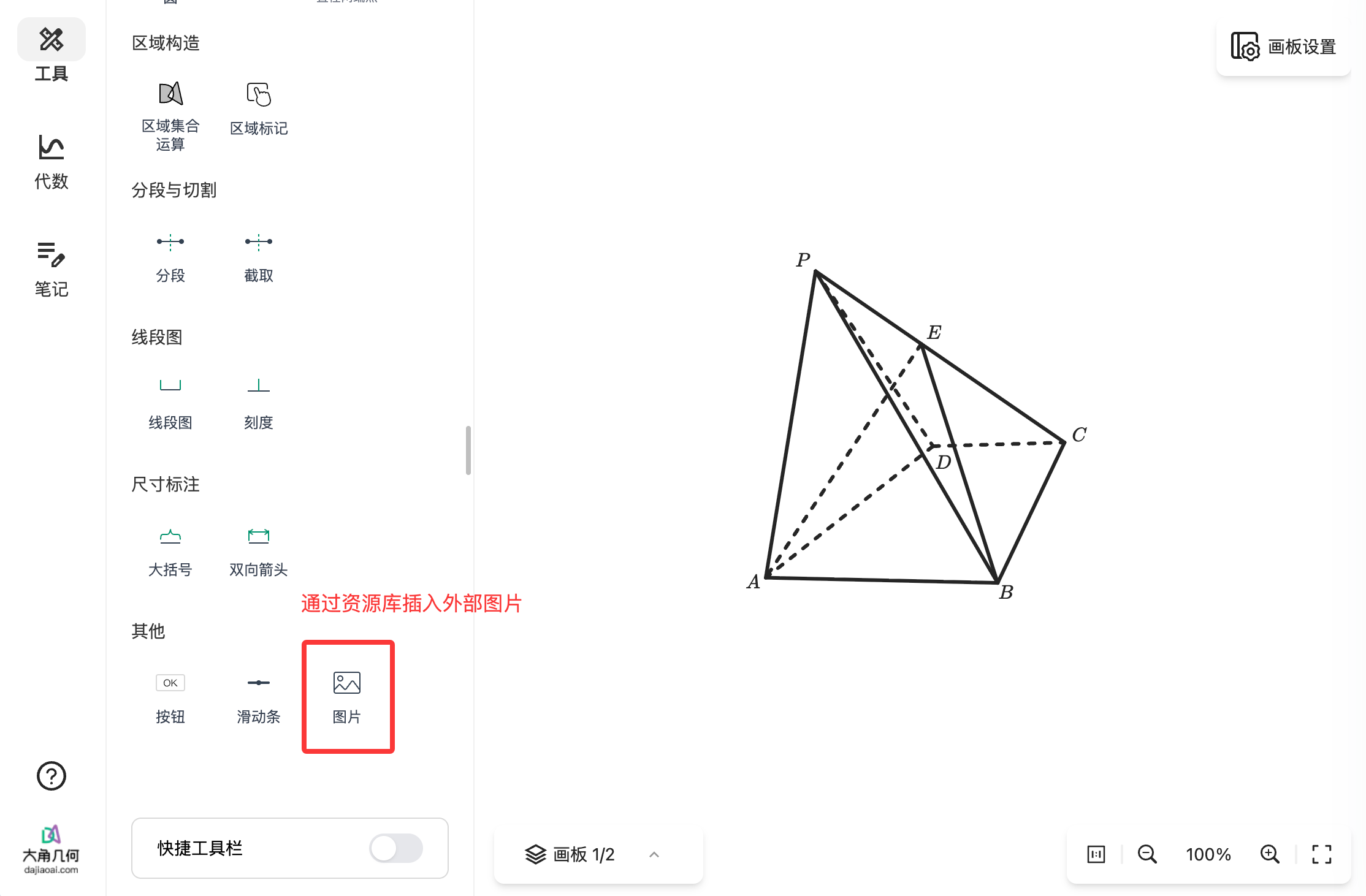
Complete Example
import {
  createEditor,
  type ResourceLibraryProvider,
} from '@dajiaoai/algeo-sdk';

const resourceLibrary: ResourceLibraryProvider = {
  async query(params, { signal }) {
    const search = new URLSearchParams({
      page: String(params.page),
      pageSize: String(params.pageSize),
    });

    if (params.keyword) {
      search.set('keyword', params.keyword);
    }
    if (params.mediaTypes?.length) {
      search.set('mediaTypes', params.mediaTypes.join(','));
    }

    // Implement the material search endpoint for your application.
    const response = await fetch(`/api/materials?${search}`, { signal });
    if (!response.ok) {
      throw new Error(`Material query failed: ${response.status}`);
    }

    const data = await response.json();

    return {
      items: data.items.map((item) => ({
        id: item.id,
        name: item.name,
        mediaType: item.mimeType,
        url: item.originalUrl,
        thumbnailUrl: item.thumbnailUrl,
        width: item.width,
        height: item.height,
        size: item.size,
      })),
      pageInfo: {
        page: params.page,
        pageSize: params.pageSize,
        hasNext: data.hasNext,
        total: data.total,
      },
    };
  },
};

const editor = await createEditor(
  document.getElementById('algeo-editor')!,
  {
    auth: { appId: 'YOUR_APP_ID' },
    resourceLibrary,
  },
);
query runs in the host page, so it can reuse the host's existing login session or call the host's own backend. The backend can then enforce permissions and return only the materials visible to the current user.
Provider Protocol
interface ResourceLibraryProvider {
  query(
    params: ResourceLibraryQuery,
    context: ResourceLibraryQueryContext,
  ): Promise<ResourceLibraryResult>;
}

interface ResourceLibraryQueryContext {
  signal: AbortSignal;
}
Query Parameters
interface ResourceLibraryQuery {
  page: number;
  pageSize: number;
  keyword?: string;
  mediaTypes?: string[];
}| Field | Type | Description |
|---|---|---|
page | number | Page number, starting at 1. |
pageSize | number | Number of items per page. It must be a positive integer and cannot exceed 100. |
keyword | string | Optional search term. The integrator can match it against names, tags, or other application fields. |
mediaTypes | string[] | Optional media type filter. The material library currently supports images only. |
The host should not modify page or pageSize. The pagination fields in the result must match the current request.
Result
interface ResourceLibraryResult {
  items: ResourceLibraryItem[];
  pageInfo: ResourceLibraryPageInfo;
}

interface ResourceLibraryItem {
  id: string;
  name: string;
  mediaType: string;
  url: string;
  thumbnailUrl?: string;
  width?: number;
  height?: number;
  size?: number;
}

interface ResourceLibraryPageInfo {
  page: number;
  pageSize: number;
  hasNext: boolean;
  total?: number;
}
Image Fields
| Field | Required | Description |
|---|---|---|
id | yes | Non-empty material ID. It must be unique within a query result and should remain stable throughout the material's lifecycle. |
name | yes | Non-empty material name. |
mediaType | yes | Image MIME type. It must start with image/, such as image/png or image/jpeg. |
url | yes | Absolute HTTP(S) URL of the original image, used to insert the material into the slide after selection. |
thumbnailUrl | no | Absolute HTTP(S) URL of the thumbnail. If omitted, the original image can be used for display. |
width | no | Width of the original image in pixels. If provided, it must be a positive integer. |
height | no | Height of the original image in pixels. If provided, it must be a positive integer. |
size | no | File size in bytes. If provided, it must be a positive integer. |
Pagination Fields
| Field | Required | Description |
|---|---|---|
page | yes | Must equal params.page from the current query. |
pageSize | yes | Must equal params.pageSize from the current query. |
hasNext | yes | Whether another page is available. |
total | no | Total number of materials matching the current query. If provided, it must be an integer greater than or equal to 0. |
The SDK validates these fields before passing the result to the editor. If the protocol data is invalid, the query fails and the materials are not displayed.
Handle Request Cancellation Correctly
When the search criteria change, the material panel closes, or the SDK instance is destroyed, earlier requests may no longer be needed. The SDK uses context.signal to tell the host to cancel those requests. Pass signal to asynchronous APIs that support cancellation:
const resourceLibrary: ResourceLibraryProvider = {
  async query(params, { signal }) {
    const response = await fetch('/api/materials/search', {
      method: 'POST',
      headers: { 'Content-Type': 'application/json' },
      body: JSON.stringify(params),
      signal,
    });

    if (!response.ok) {
      throw new Error('Material query failed');
    }

    return response.json();
  },
};
After a request is canceled, you do not need to return an empty list or show an error to the user. fetch ends the request, and the SDK no longer sends its result to the editor.
Image Storage and Authorization Recommendations
resourceLibrary.query() handles query authorization, but the editor must subsequently load the images through url and thumbnailUrl. Keep the following in mind:
- URLs must be accessible from the user's browser. They cannot point to an address that is reachable only from the host server's internal network.
thumbnailUrlcan point to a low-resolution thumbnail to improve list loading speed.urlshould point to the original image that will be inserted into the slide.- The current protocol does not support custom request headers for individual images. If your image service requires header-based authorization, have the host backend issue temporary URLs or provide a material proxy URL that the browser can access directly.
Error Handling
Throw an Error directly when a query fails. The SDK returns the error message to the embedded editor:
if (!response.ok) {
  throw new Error('The material service is temporarily unavailable. Please try again later.');
}
Do not return incomplete items or pageInfo data on failure. The SDK treats such data as a protocol error, which makes the underlying problem harder to diagnose.
FAQ
Why is the image library entry missing from the editor?
Make sure you passed resourceLibrary when creating the editor and are using SDK 2.11.0 or later. The entry is hidden automatically when no Provider is configured.
Can the Provider return videos, audio files, or documents?
Not currently. Please send us feedback if you need these formats. The SDK currently validates mediaType, and only image materials whose type starts with image/ pass validation.