
Consistent Image Export Across Workflows
When the same planar geometry canvas is exported repeatedly from the editor, a host webpage, MCP automation, or backend jobs, do not rely on “fit content,” the current camera, or a fixed output size to keep results consistent. Define one precise crop window for the canvas, then pass the same world-coordinate range and scale to every export workflow.
Key recommendations
- Projects initialized through MCP: the AI should set a recommended canvas range based on the problem content and intended composition.
- Projects initialized with an embedded canvas: a person should set the precise finite-canvas range in the canvas UI and use those bounds as the shared source of truth for subsequent exports.
- Image export: use SDK
viewmode with an explicit, preciseviewBound. MCP exports must also explicitly provide the four bounds for the same range andscale. Do not omit the bounds and fall back to the current camera, an automatic bounding box, or a server-side default viewport.

Why automatic cropping cannot guarantee consistency
contain mode changes with the bounding box of visible objects. Adding annotations or helper lines, changing hidden-object state, or moving an element can all alter the image edges and final dimensions. When the crop window is omitted, different environments can also read different current cameras or default viewports.
A precise crop window fixes both the range being drawn and the number of logical pixels rendered per world-coordinate unit:
const crop = {
  left: -6,
  right: 6,
  top: 4,
  bottom: -4,
  scale: 50,
};
These finite-canvas parameters describe a logical image with a width of 12 × 50 = 600 px and a height of 8 × 50 = 400 px. They are saved with the project. At export time, read the precise range from the project instead of writing approximate values separately at each call site.
A shared viewBound across protocols
For planar geometry, MCP, the embedded SDK, and the Render API all use the same world-coordinate crop semantics: { left, right, bottom, top }. The SDK places scale inside viewBound; MCP and the Render API accept scale at the top level.
SDK: use view mode
const viewBound = {
  left: crop.left,
  top: crop.top,
  right: crop.right,
  bottom: crop.bottom,
  scale: crop.scale,
};

const images = await editor.slides.exportImage({
  mode: 'view',
  format: 'png',
  viewBound,
  pixelRatio: 1,
});
The SDK calculates output pixels as:
width = (right - left) × scale × pixelRatio
height = (top - bottom) × scale × pixelRatio
If the canvas already has a finite canvas configured, read its export view and pass it directly to exportImage:
const viewBound = await editor.slides.getViewBounds();
if (!viewBound) throw new Error('The current canvas has no finite canvas configured');
MCP: set the canvas to finite mode
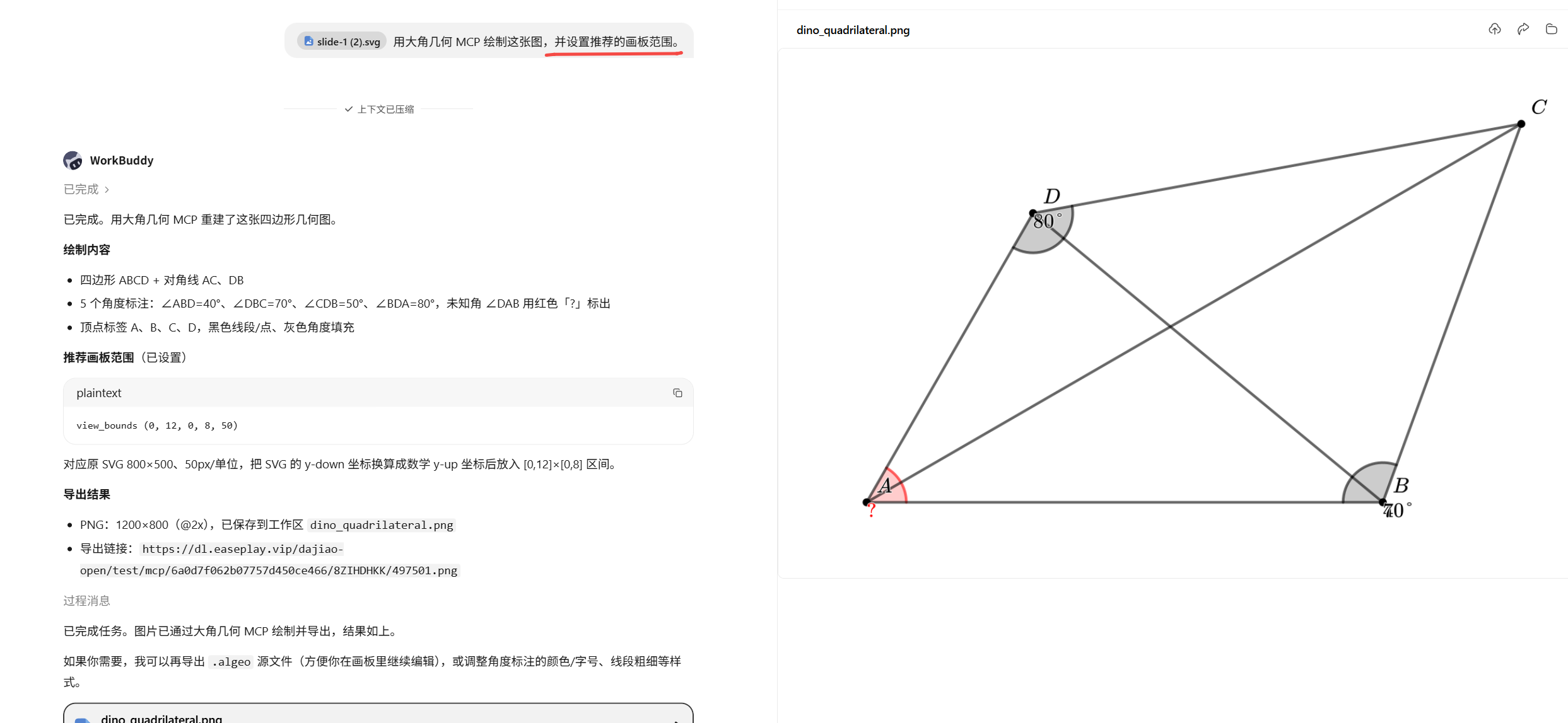
After MCP initializes a project, the AI can call view_bounds through repl to set a recommended finite canvas range for the current 2D canvas:
view_bounds (-1, 13, -1, 10, 50)The five parameters are minX, maxX, minY, maxY, and scale, in that order. This example uses the X range [-1, 13], the Y range [-1, 10], and renders each world-coordinate unit at 50 logical pixels. The range is saved on the current canvas in the project so later SDK, MCP, or API exports can read and reuse it.
view_bounds is available only for 2D canvases. To restore an infinite canvas, run view_bounds infinite.
MCP: provide the crop window explicitly
MCP export_image also fixes the planar-geometry crop window through viewBound and scale.
{
  sessionId,
  slideIndex: 1,
  viewBound: {
    left: crop.left,
    right: crop.right,
    bottom: crop.bottom,
    top: crop.top,
  },
  scale: crop.scale,
}
Troubleshooting common differences
| Symptom | Common cause | Resolution |
|---|---|---|
| Image dimensions change with content | contain or an automatic bounding box is used | Switch to a precise crop window |
| Composition matches but pixel dimensions differ | scale or SDK pixelRatio differs | Fix both values and verify them with the formula |
Related documentation: Export images in edit mode and the MCP guide.