
MCP Integration
MCP (Model Context Protocol) allows AI clients that support the protocol to call Dino-GSP capabilities directly, so geometry operations, export, and project I/O can happen inside an AI conversation.
If your product already includes an AI assistant, agent workflow, or tool-calling runtime, MCP is the standard way to expose Dino-GSP geometry interaction to that layer.
Service information
- MCP endpoint:
https://api.dajiaoai.com/mcp - Authentication: Bearer Token
- Header:
Authorization: Bearer YOUR_TOKEN_HERE - Billing: View MCP billing details
MCP authentication
Before connecting to MCP, you need to obtain a valid Bearer Token from the console.
The process is:
- Open the Dino-GSP Open Platform console.
- Register an application.
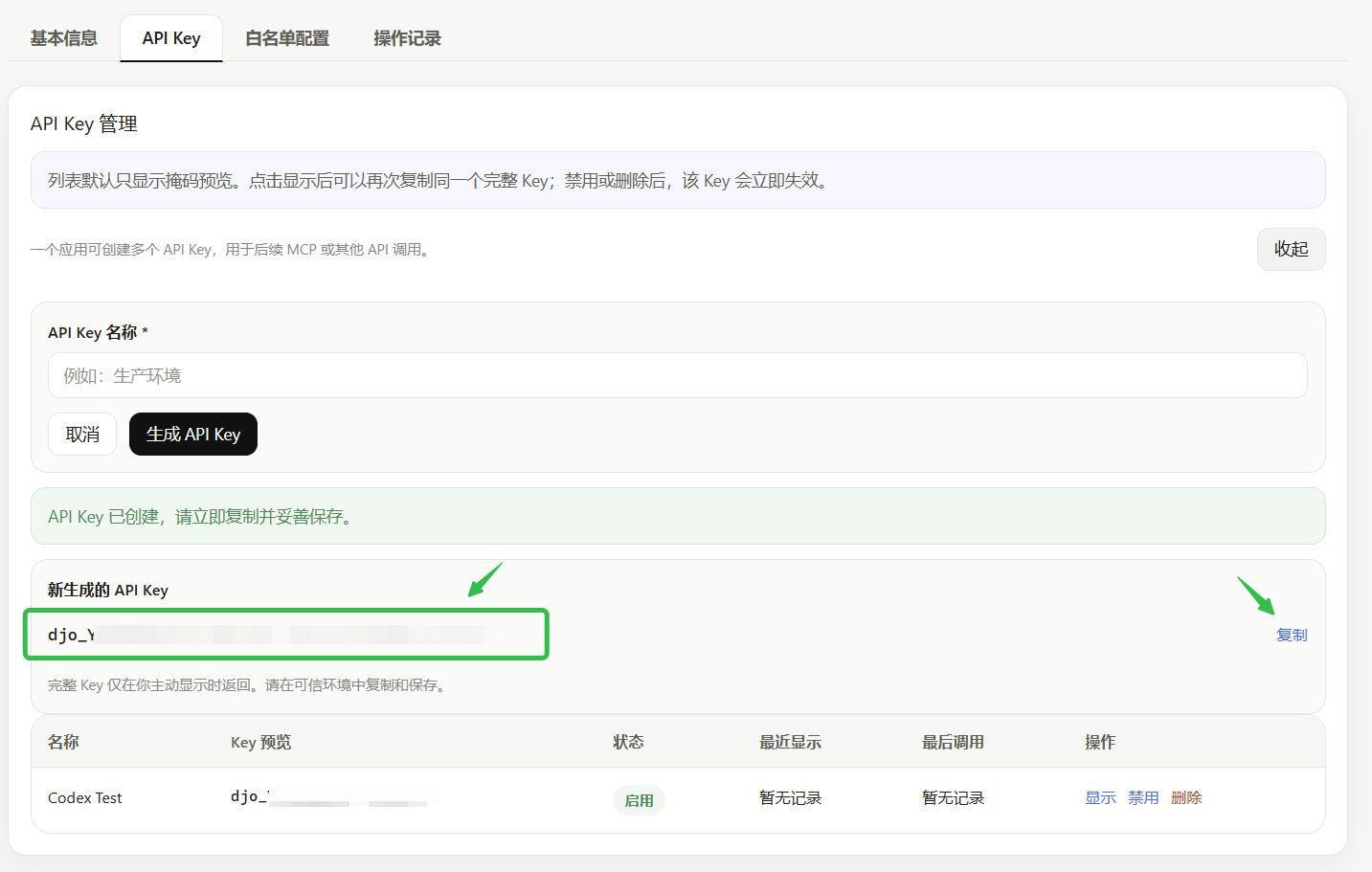
- Add an API key under that application.
- Use the generated API key as the Bearer Token in the request header:
Authorization: Bearer YOUR_TOKEN_HERE
Before you connect
Make sure the following are ready:
- Your AI client supports remote MCP servers
- You already have a valid Bearer Token
- Your environment can reach
https://api.dajiaoai.com/mcp
MCP capabilities
The currently exposed core capabilities include:
| Tool | Purpose |
|---|---|
algeo_repl | Execute interactive geometry commands on the current canvas to create, update, or inspect objects |
load_template | Load a master template, apply it to selected or all existing canvases, or use it for canvases created later |
export_image | Export the current project as a PNG image and return an accessible link that remains valid for 1 year |
export_project | Export the current project as structured JSON and return an accessible link that remains valid for 1 day |
import_project | Import structured JSON project content into the project bound to the current MCP session |
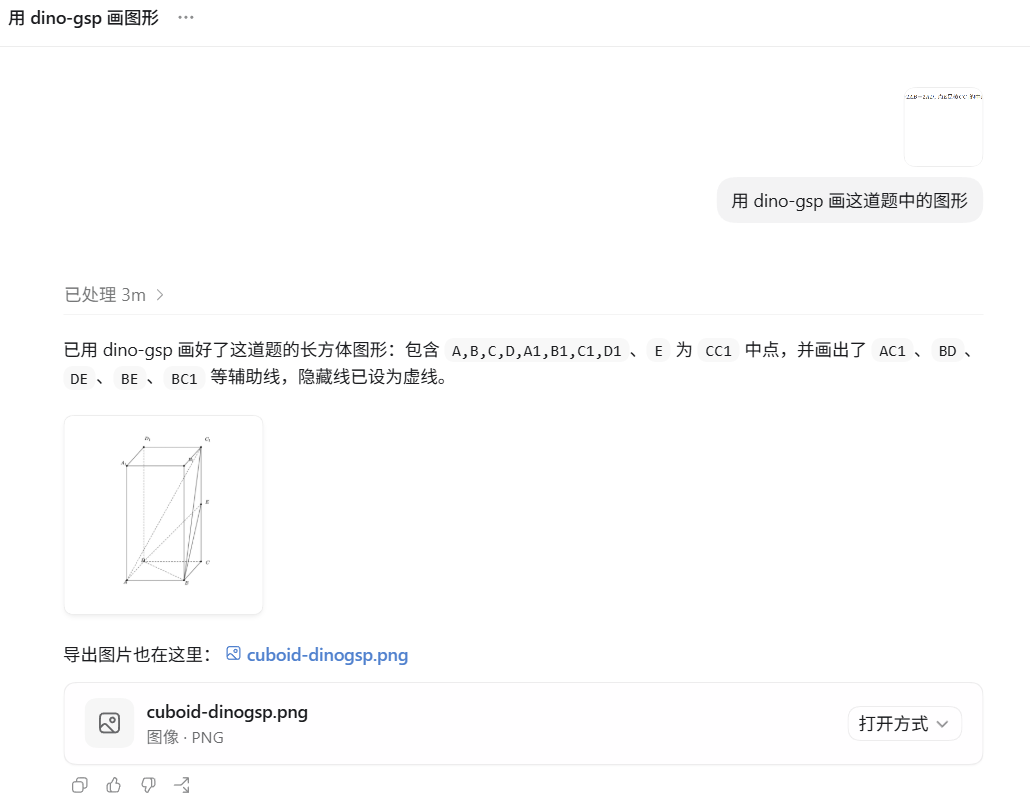
In most clients you do not need to memorize tool names. If tool calling is enabled, the model will choose the right tool from natural language requests.
To keep backgrounds, grids, axes, and default object styles consistent, see Use Master Templates with MCP.
Sizes and fonts
Font sizes, line widths, and other dimensional parameters in MCP drawing use px. For typesetting or print, convert values to px using Size Units and Conversion.
See the public font catalog for fonts available to MCP.
Available tools
Codex
When adding the MCP service in Codex, choose Streamable HTTP and fill in the following:
- Server URL:
https://api.dajiaoai.com/mcp - Header:
Authorization: Bearer YOUR_TOKEN_HERE
If you are using a Codex environment that supports CLI-based MCP configuration, you can also add the same Bearer header through the corresponding MCP add command.
Claude Code
Run:
claude mcp add --transport http dino-gsp https://api.dajiaoai.com/mcp --header "Authorization: Bearer YOUR_TOKEN_HERE"After adding the server, run /mcp in Claude Code to inspect its status.
Cursor
Edit .cursor/mcp.json:
{
  "mcpServers": {
    "dino-gsp": {
      "url": "https://api.dajiaoai.com/mcp",
      "headers": {
        "Authorization": "Bearer YOUR_TOKEN_HERE"
      }
    }
  }
}
After saving, return to Tools & MCP and confirm that the server loads successfully.
VS Code
Create or edit .vscode/mcp.json in your workspace:
{
  "servers": {
    "dino-gsp": {
      "type": "http",
      "url": "https://api.dajiaoai.com/mcp",
      "headers": {
        "Authorization": "Bearer YOUR_TOKEN_HERE"
      }
    }
  }
}
You can also add the server from the command palette. Choose HTTP (HTTP or Server-Sent Events) and provide the same Bearer header.
WorkBuddy
Open the MCP configuration page in WorkBuddy and add the following:
{
  "mcpServers": {
    "dino-gsp": {
      "type": "http",
      "url": "https://api.dajiaoai.com/mcp",
      "headers": {
        "Authorization": "Bearer YOUR_TOKEN_HERE"
      },
      "disabled": false
    }
  }
}
After saving, return to the MCP list and confirm that the service loads successfully.
Example prompts
FAQ
1. What should I check if I get 401 or cannot list tools?
Check the following first:
- The
Authorizationheader is present - The value includes the exact
Bearerprefix - The endpoint is exactly
https://api.dajiaoai.com/mcp